Unit-8 (Search results page part 1)
Accessing the Unit-8
Clone the unit-8, branch to start this tutorial.
Intro
In this unit we will be setting up the first parts of the Search results page. We will be doing some more work with our toasts and toast store and we will also be looking at forms in React.
Setting up the search form
In this section we are going to be looking at setting up our inputs and selects in <Search /> component found in /organisms/search.jsx
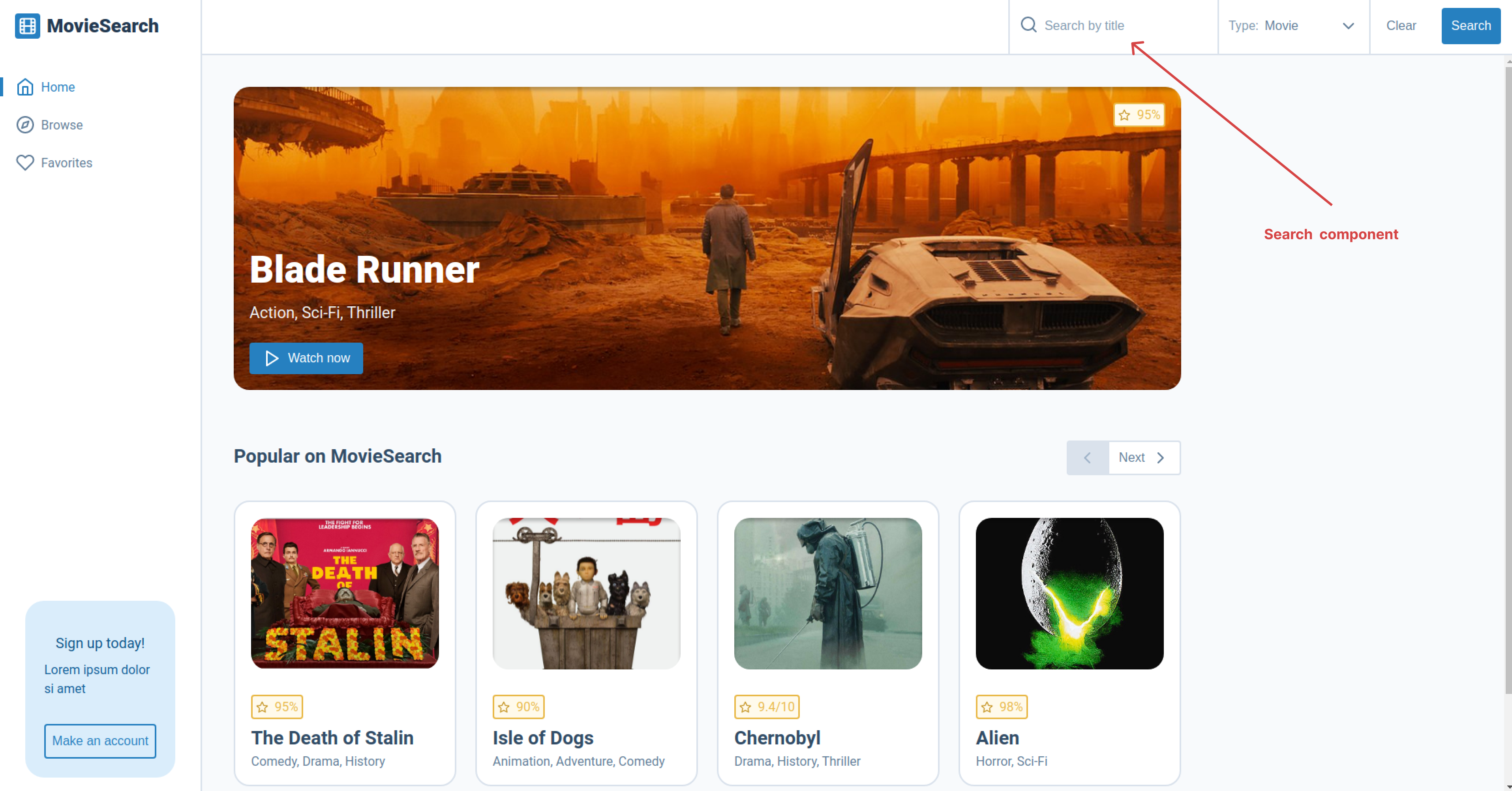
Setting up inputs and selects in react
The first thing we need to focus on is the <InputWithLabel /> component that is being rendered in our <Search /> component. Most of the hard work as be done for us, i.e the styling but if you try to type anything into the search nothing happens. This is because we need our inputs to be linked up to some state and when the value of the input is changed we update our state.
To do this we first need to set up our state, we might as well set up our state for the <SelectWithLabel /> component while we are at it as that will need its own state as well.
// This will handle our input state and change
const [inputValue, setInputValue] = useState('');
const handleInputChange = (e) => setInputValue(e.target.value);

// This will handle our select state and change
const [selectValue, setSelectValue] = useState('movie');
const handleSelectChange = (e) => setSelectValue(e.target.value);
Next all we need to do is add our state to both our <InputWithLabel /> and <SelectWithLabel /> components. So the value prop will be set to our current state and the onChange prop will be set to our set state.
<InputWithLabel
  className={styles.search__input}
  type="text"
  placeholder="Search by title"
  value={inputValue} // Added
  handleChange={handleInputChange} // Added
  >
  <FiSearch className={styles.search__icon} />
</InputWithLabel>
<SelectWithLabel
  className={styles.search__select}
  label="Type:"
  value={selectValue} // Added
  onChange={handleSelectChange} // Added
  options={[
    { value: 'movie', name: 'Movie' },
    { value: 'series', name: 'Series' },
    { value: 'episode', name: 'Episode' },
  ]}
/>
You can test this by entering a search into the <InputWithLabel /> component, the search itself is not yet working but the input should update. This you can also test the <SelectWithLabel /> component to see if that updates as well.
Setting up the searchReducer
As you may have guessed as it would be a good idea to abstract the search logic away from the <Search /> component, the component will give use the input data but our reducer will handle the API request.
The first thing we need to do is add our searchActions.js to our actionsfolder with the following code:
import { createAction } from '@reduxjs/toolkit';

export const setSearch = createAction('SET_SEARCH');
The only action we will need is our setSearch action. This is because we only need to set the search as the searchReducer will handle the rest (handling errors and making the APR request).
Next lets add our searchReducer.js to the reduces folder. We need to start by setting up our initialState. This will be made up of two parts the currentSearch which is an object that contains isValidSearch a boolean, errorMessage which is a string, search which will be the value of our input and lastly the type which will be the type of search (this comes from the movie type dropdown in the search form). The currentSearch object is basically everything we need to know about the users search. However, the second part results which is an array will contain all of the data we get back from our API, but it needs to be set as an empty array as we have not yet made the API request.
For now we are only going to handle if the search is valid or not in our builder and update the state if there is an error. In unit-9 we will go on to add our API request to our searchReducer if currentSearch is valid.
import { createReducer } from '@reduxjs/toolkit';
import { setSearch } from '../actions/searchActions';

const initialState = {
  currentSearch: {
    isValidSearch: null,
    errorMessage: '',
    search: '',
    type: '',
  },
  results: [],
};

const searchReducer = createReducer(initialState, (builder) => {
  builder
    .addCase(setSearch, (state, action) => {
      const {
        isValidSearch,
      } = action.payload.currentSearch;

      // If not a valid search don't make API request but just return updated state
      if (!isValidSearch) {
        state.currentSearch = { ...action.payload.currentSearch };
        state.results = [];
      }

      // Is valid search
      if (isValidSearch) {
        state.currentSearch = { ...action.payload.currentSearch };
        state.results = [];
      }
    });
});

export default searchReducer;
Lastly we need to add our new searchReducer to store.js.
import { configureStore } from '@reduxjs/toolkit';
import favoritesReducer from './reducers/favoritesReducer';
import moviesReducer from './reducers/moviesReducer';
import toastReducer from './reducers/toastReducer';
import searchReducer from './reducers/searchReducer'; // Added

export const store = configureStore({
  reducer: {
    favorites: favoritesReducer,
    movies: moviesReducer,
    toast: toastReducer,
    search: searchReducer, // Added
  },
});
Adding some imports to the <Search /> component
The first thing we need to do is import the following into our <Search /> component. Note that the containsSpecialChars util function has been added to help us check if a string contains special characters. We also need to add our useDispatch, useLocation and useNavigate but these will be covered in the next section.
import React, { useState } from 'react';
import PropTypes from 'prop-types';
import { useDispatch } from 'react-redux'; // Added
import { useLocation, useNavigate } from 'react-router-dom'; // Added
import { FiSearch } from 'react-icons/fi';
import styles from './search.module.scss';
import containsSpecialChars from '../../../utils/containsSpecialChars'; // Added
import InputWithLabel from '../../molecules/input-with-label/input-with-label';
import SelectWithLabel from '../../molecules/select-with-label/select-with-label';
import ButtonPrimary from '../../atoms/button-primary/button-primary';
import ButtonTertiary from '../../atoms/button-tertiary/button-tertiary';
Getting our current route
Before we start on any of the big stuff we will need to start by getting our current route as we will need it for later. To do this all we need to do is get the pathname from the useLocation hook. It would also be a good idea to setup our useDispatch and useNavigate hooks as we are going to need them later.
// Get current route
const currentRoute = useLocation().pathname;

const dispatch = useDispatch();
const navigate = useNavigate();
Clearing the form inputs
We need a way of clearing our search, to this we can just add a clearForm function to the <Search /> component, this is what will clear our form for us when the form is submitted or the clear button is clicked.
// This will clear our search form
const clearForm = () => {
  setInputValue('');
  setSelectValue('movie');
};
Now lets set up a handleClear function for our <ButtonTertiary /> component, strictly speaking we could just use the clearForm in the <ButtonTertiary /> onClick but it may be easier to read like this.
// This clearing our search when the clear button is clicked
const handleClear = () => clearForm();
Then we just need to add our handleClear to our <ButtonTertiary /> component,
<ButtonTertiary
className={styles.search__button}
onClick={handleClear}
>
  Clear
</ButtonTertiary>
Basic error handling in the <Search /> component
The <Search /> component will need to check if the input is blank or has special characters. It will navigate to the <SearchResults /> page component but the before it does the <Search /> component will update the search store with the error. To do this we need to add our validatedInput function, this will just return a object with the valid and errorMessage keys depending on if the input is valid or not.
// This will handle our input validation
const validatedInput = (input) => {
  if (input === '') return { valid: false, errorMessage: 'Please enter a movie' };
  if (containsSpecialChars(input)) return { valid: false, errorMessage: 'Movie must not have special characters' };
  return { valid: true, errorMessage: '' };
};
The handleSubmit function
Now we need to start on the logic that handles our form submit. As previously mentioned when the form is submitted it will update our search store with a valid search or with an error, then we will clear the form and navigate to the <SearchResults /> page component if not already on that page.
To do this all we need to do is add the following to our handleSubmit:
- Prevent the form default submit, this will stop the page refreshing
- Get our
valid,errorMessagefrom ourvalidatedInputfunction - If the search isn't valid we will update our search store with the error and set the search and type to empty strings.
- If the search is valid we will set the search and type to our values from our
inputValueandselectValue - Then we clear the form
- Lastly, we navigate to the search results page if we are not already are not already on it
// This will handle our form submit
const handleSubmit = (e) => {
  e.preventDefault();

  // Run our input validation
  const { valid, errorMessage } = validatedInput(inputValue);

  // Validate input value, if not valid update search store
  if (!valid) {
    dispatch({
      type: 'SET_SEARCH',
      payload: {
        currentSearch: {
          isValidSearch: valid,
          errorMessage,
          search: '',
          type: '',
        },
      },
    });
  }

  // if valid search:
  if (valid) {
    dispatch({
      type: 'SET_SEARCH',
       payload: {
        currentSearch: {
          isValidSearch: valid,
          errorMessage,
          search: inputValue,
          type: selectValue,
        },
      },
    });
  }

  // clear the form
  clearForm();

  // If not already on the search page navigate to it
  if (currentRoute !== '/search-results') {
    navigate('/search-results');
  }
};
Our finished component should look like this:
import React, { useState } from 'react';
import PropTypes from 'prop-types';
import { useDispatch } from 'react-redux';
import { useLocation, useNavigate } from 'react-router-dom';
import { FiSearch } from 'react-icons/fi';
import styles from './search.module.scss';
import containsSpecialChars from '../../../utils/containsSpecialChars';
import InputWithLabel from '../../molecules/input-with-label/input-with-label';
import SelectWithLabel from '../../molecules/select-with-label/select-with-label';
import ButtonPrimary from '../../atoms/button-primary/button-primary';
import ButtonTertiary from '../../atoms/button-tertiary/button-tertiary';

const Search = ({ className }) => {
  // This will handle our input state and change
  const [inputValue, setInputValue] = useState('');
  const handleInputChange = (e) => setInputValue(e.target.value);

  // This will handle our select state and change
  const [selectValue, setSelectValue] = useState('movie');
  const handleSelectChange = (e) => setSelectValue(e.target.value);

  // Get current route
  const currentRoute = useLocation().pathname;

  const dispatch = useDispatch();
  const navigate = useNavigate();

  // This will clear our search form
  const clearForm = () => {
    setInputValue('');
    setSelectValue('movie');
  };

  // This clearing our search when the clear button is clicked
  const handleClear = () => clearForm();

  // This will handle our input validation
  const validatedInput = (input) => {
    if (input === '') return { valid: false, errorMessage: 'Please enter a movie' };
    if (containsSpecialChars(input)) return { valid: false, errorMessage: 'Movie must not have special characters' };
    return { valid: true, errorMessage: '' };
  };

  // This will handle our form submit
  const handleSubmit = (e) => {
    e.preventDefault();

    // Run our input validation
    const { valid, errorMessage } = validatedInput(inputValue);

    // Validate input value, if not valid update search store
    if (!valid) {
      dispatch({
        type: 'SET_SEARCH',
        payload: {
          currentSearch: {
            isValidSearch: valid,
            errorMessage,
            search: '',
            type: '',
          },
        },
      });
    }

    // if valid search:
    if (valid) {
      dispatch({
        type: 'SET_SEARCH',
        payload: {
          currentSearch: {
            isValidSearch: valid,
            errorMessage,
            search: inputValue,
            type: selectValue,
          },
        },
      });
    }

    // clear the form
    clearForm();

    // If not already on the search page navigate to it
    if (currentRoute !== '/search-results') {
      navigate('/search-results');
    }
  };

  return (
    <form className={`${styles.search} ${className}`}>
      <InputWithLabel
        className={styles.search__input}
        type="text"
        placeholder="Search by title"
        value={inputValue}
        handleChange={handleInputChange}
      >
        <FiSearch className={styles.search__icon} />
      </InputWithLabel>
      <SelectWithLabel
        className={styles.search__select}
        label="Type:"
        value={selectValue}
        onChange={handleSelectChange}
        options={[
          { value: 'movie', name: 'Movie' },
          { value: 'series', name: 'Series' },
          { value: 'episode', name: 'Episode' },
        ]}
      />
      <div className={styles['search__button-group']}>
        <ButtonTertiary
          className={styles.search__button}
          onClick={handleClear}
        >
          Clear
        </ButtonTertiary>
        <ButtonPrimary type="submit" onClick={handleSubmit}>
          Search
        </ButtonPrimary>
      </div>
    </form>
  );
};

Search.propTypes = {
  className: PropTypes.string,
};

Search.defaultProps = {
  className: '',
};

export default Search;
The SearchResults page
Now lets start working on the <SearchResults /> page component. When the user navigates to this page we want to do the following:
- Show error toast if the search is not valid
- Show "Please enter a valid search"
<SecondaryHeading />and<ButtonBack />if search is not valid - Show if isValidSearch is null we want to show an info toast as the user has navigated to the page without searching for anything
- Show "Start searching for movies"
<SecondaryHeading />and<ButtonBack />if isValidSearch is null
The first thing we need to do is import our useSelector and useDispatch hooks.
import React from 'react';
import { useSelector, useDispatch } from 'react-redux'; // Added
import ButtonBack from '../../atoms/button-back/button-back';
import SecondaryHeading from '../../atoms/typography/secondary-heading/secondary-heading';
Now in our <SearchResults /> component we need to get our current search store.
// Get search store
const currentSearch = useSelector((state) => state.search.currentSearch);
Lets now add the code to show error toast if the search is not valid or show an info toast is the user did enter a search.
// If not a valid search show error toast
const dispatch = useDispatch();
if (!currentSearch.isValidSearch) {
  dispatch({
    type: 'SHOW_TOAST',
    payload: {
      display: true,
      message: currentSearch.errorMessage,
      type: 'error',
    },
  });
}

// User has navigated to the page and there is no data in currentSearch some info toast
if (currentSearch.isValidSearch === null) {
  dispatch({
    type: 'SHOW_TOAST',
    payload: {
      display: true,
      message: 'Search for movies using the form at the top of the page',
      type: 'default',
    },
  });
}
Next render a <ButtonBack /> and <SecondaryHeading /> depending on if the search is valid:
// User has navigated to the page and there is no data in currentSearch
if (currentSearch.isValidSearch === null) {
  return (
    <div className={styles['search-results']}>
      <ButtonBack to="/">
        Back
      </ButtonBack>
      <SecondaryHeading>Start searching for movies</SecondaryHeading>
    </div>
  );
}

// User has navigated to the page and there is no data in currentSearch
if (!currentSearch.isValidSearch) {
  return (
    <div className={styles['search-results']}>
      <ButtonBack to="/">
        Back
      </ButtonBack>
      <SecondaryHeading>Please enter a valid search</SecondaryHeading>
    </div>
  );
}
Lastly lets just add some placeholder content if the search is valid.
return (
  <div className={styles['search-results']}>
    <ButtonBack to="/">
      Back
    </ButtonBack>
    <SecondaryHeading>We could not find anything</SecondaryHeading>
  </div>
);
Our finished component should look like this:
import React from 'react';
import { useSelector, useDispatch } from 'react-redux';
import styles from './search-results.module.scss';
import ButtonBack from '../../atoms/button-back/button-back';
import SecondaryHeading from '../../atoms/typography/secondary-heading/secondary-heading';
import Card from '../../molecules/card/card';

const SearchResults = () => {
  // Get search store
  const currentSearch = useSelector((state) => state.search.currentSearch);

  // If not a valid search show error toast
  const dispatch = useDispatch();
  if (!currentSearch.isValidSearch) {
    dispatch({
      type: 'SHOW_TOAST',
      payload: {
        display: true,
        message: currentSearch.errorMessage,
        type: 'error',
      },
    });
  }

  // User has navigated to the page and there is no data in currentSearch some info toast
  if (currentSearch.isValidSearch === null) {
    dispatch({
      type: 'SHOW_TOAST',
      payload: {
        display: true,
        message: 'Search for movies using the form at the top of the page',
        type: 'default',
      },
    });
  }

  // User has navigated to the page and there is no data in currentSearch
  if (currentSearch.isValidSearch === null) {
    return (
      <div className={styles['search-results']}>
        <ButtonBack to="/">
          Back
        </ButtonBack>
        <SecondaryHeading>Start searching for movies</SecondaryHeading>
      </div>
    );
  }

  // User has navigated to the page and there is no data in currentSearch
  if (!currentSearch.isValidSearch) {
    return (
      <div className={styles['search-results']}>
        <ButtonBack to="/">
          Back
        </ButtonBack>
        <SecondaryHeading>Please enter a valid search</SecondaryHeading>
      </div>
    );
  }

  return (
    <div>
      <ButtonBack to="/">
        Back
      </ButtonBack>
      <SecondaryHeading>We could not find anything</SecondaryHeading>
    </div>
  );
};

export default SearchResults;
Task 1
In unit-9 we will be covering making our API request from the OMDd API and showing the movies in our <SearchResults /> page component. For now your task is to render a set of <Card /> components on the <SearchResults /> page if the search is valid, however instead of using data from our search store (we will get this when we make our request to the OMDd API) we will just use the default movies data from data/default-movies.js as placeholder data for now.
Your rendered cards should look like this if the search is valid.
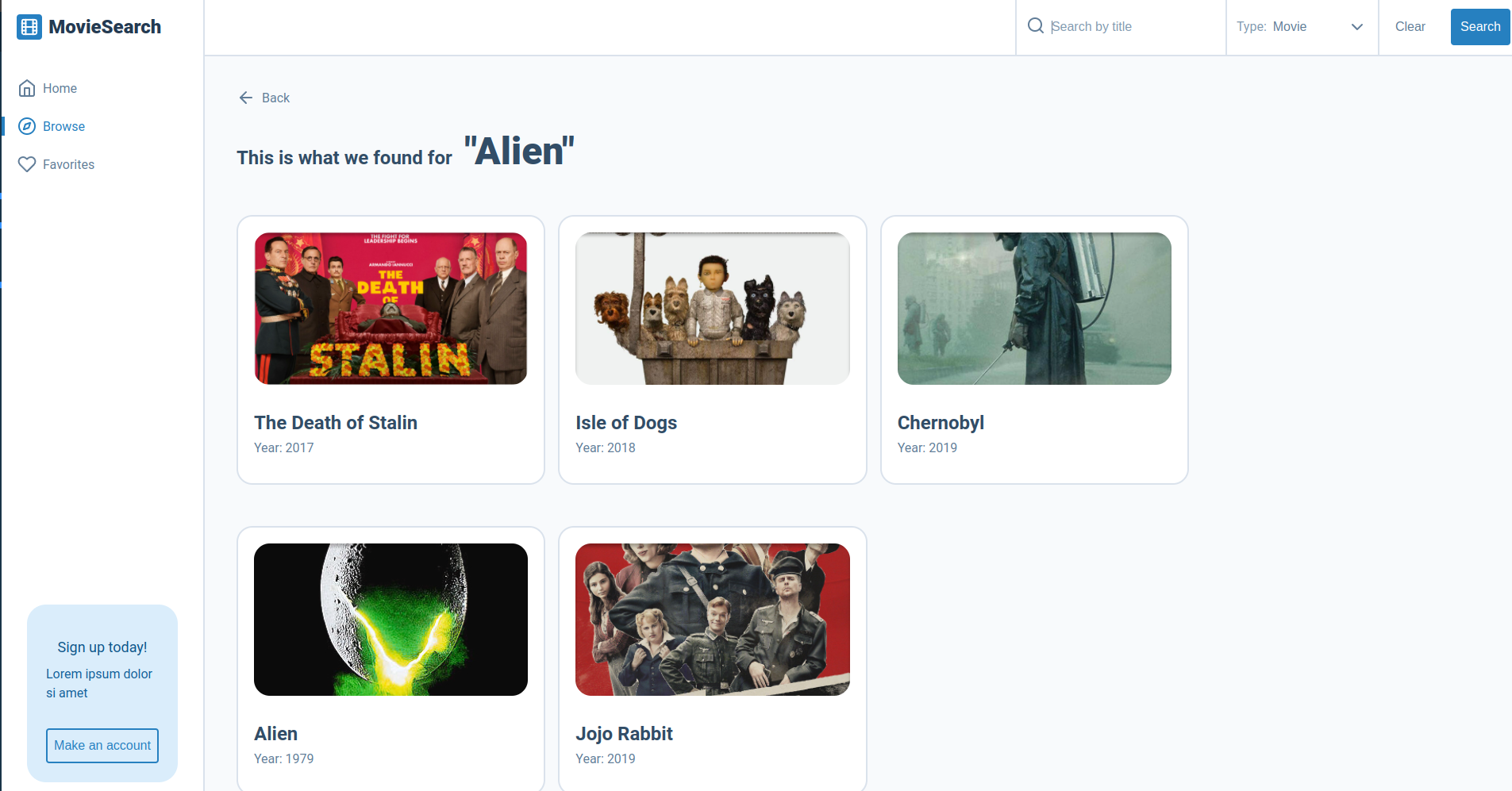
info
Do display the correct version of <Card /> you will need to add the basic prop to it.
Lastly, here is some starter code to help you in your quest.
// Is a valid search
if (currentSearch.isValidSearch) {
return (
<div className={styles['search-results']}>
<ButtonBack to="/">
Back
</ButtonBack>
<SecondaryHeading className={styles['search-results__heading']}>
{/* Just a placeholder */}
This is what we found for
<span className={styles['search-results__heading-span']}>"Alien"</span>
</SecondaryHeading>
<div className={styles['search-results__cards']}>
{/* Render your cards here */}
</div>
);
}
Task 2
Update the <SecondaryHeading /> span to display the search term instead of the world "Alien".
If you get stuck or get overwhelmed remember you can always get the answers for these tasks on the unit-8-answers page.