Unit-4 (setting up React Router)
Accessing the Unit-4 tutorial
Clone the unit-4, branch to start this tutorial.
React Router
In the section we will be covering React Router, specifically React Router 6. So what is React router anyway?
React Router is a standard library for routing in React. It enables the navigation among views of various components in a React Application, allows changing the browser URL, and keeps the UI in sync with the URL.
However, it is important to understand that we will be using React Router for client-side not server-side routing. What this means is that will are not actually loading a new page when we navigate to a new route (unlike server-side routing), It will look like we have but under the hood React Router will update our UI and URL but not actually load a new page.
Setting up BrowserRouter
Lets start by setting up our BrowserRouter in index.jsx.
BrowserRouter: BrowserRouter is a router implementation that uses the HTML5 history API(pushState, replaceState and the popstate event) to keep your UI in sync with the URL.
import React from 'react';
import ReactDOM from 'react-dom';
import { Provider } from 'react-redux';
import { BrowserRouter } from 'react-router-dom';
import { store } from './store';
import App from './App';

ReactDOM.render(
  <React.StrictMode>
    <BrowserRouter>
      <Provider store={store}>
        <App />
      </Provider>
    </BrowserRouter>
  </React.StrictMode>,
  document.getElementById('root'),
);
NoMatch page
Next lets quickly look at the <NoMatch /> page component that was added to src/components/pages. All it shows is a <PrimaryHeading /> and a <Paragraph /> component. It is pretty basic but we will add to it in the future. We will leave it for now but it will come in handy later on in this unit, as we are going to use it as a 404 page if we can't find a route ie /movie/this-page-dose-not-exist.
import React from 'react';
import PrimaryHeading from '../../atoms/typography/primary-heading/primary-heading';
import Paragraph from '../../atoms/typography/paragraph/paragraph';

const NoMatch = () => (
  <div>
    <PrimaryHeading>Oops 404</PrimaryHeading>
    <Paragraph>Something went wrong.</Paragraph>
  </div>
);

export default NoMatch;
Movie page
The <Movie /> page component has also been added in src/components/pages, lets just add some place holder text in it for now.
import React from 'react';

const Movie = () => (
  <div>
    I am a movie
  </div>
);

export default Movie;
Adding our Routes
Lets say we wanted to add a /movie route to our URL, so when the user navigates to it it shows our <Movie /> page component, how would we do that? Firstly, we will need to import Routes and Route from 'react-router-dom' into our App.js file. We then add the <Routes /> component to our <App /> component. However, we also want to add it inside our <Layout /> component. Remember our <Layout /> component contains our <Header /> <Navbar /> and <Search /> components and we want these to be shown on every page. So, we don't want to render <Layout /> component every time the URL is updated as it always says consistent. Now lets add our <Route /> component with the path prop set to "movie" and the element prop set to <Movie />. What this means is if we hit /movie route our <Route /> will render our <Movie /> page component.
import React from 'react';
import { Routes, Route } from 'react-router-dom';
import './styles/main.scss';
import Layout from './components/templates/layout/layout';
import Movie from './components/pages/movie/movie';

const App = () => (
  <div className="App">
    <header className="App-header">
      <Layout>
        <Routes>
          <Route path="movie" element={<Movie />} />
        </Routes>
      </Layout>
    </header>
  </div>
);

export default App;
Whats wrong with the code above? The problem is we have no root route, so lets say we navigated to our home route / not the /movies route, we aren't loading our <Home /> page component. So lets add that route to our code. While we are at it lets add a route with its path prop set to * and set its element prop to <NoMatch />, this will render our <NoMatch /> page component if none of the other routes are found.
import React from 'react';
import { Routes, Route } from 'react-router-dom';
import './styles/main.scss';
import Layout from './components/templates/layout/layout';
import Home from './components/pages/home/home';
import Movie from './components/pages/movie/movie';
import NoMatch from './components/pages/no-match/no-match';

const App = () => (
  <div className="App">
    <header className="App-header">
      <Layout>
        <Routes>
          <Route path="/" element={<Home />} />
          <Route path="movie" element={<Movie />} />
          <Route path="*" element={<NoMatch />} />
        </Routes>
      </Layout>
    </header>
  </div>
);

export default App;
Setting up our links
Lets now take a look at our navigation.
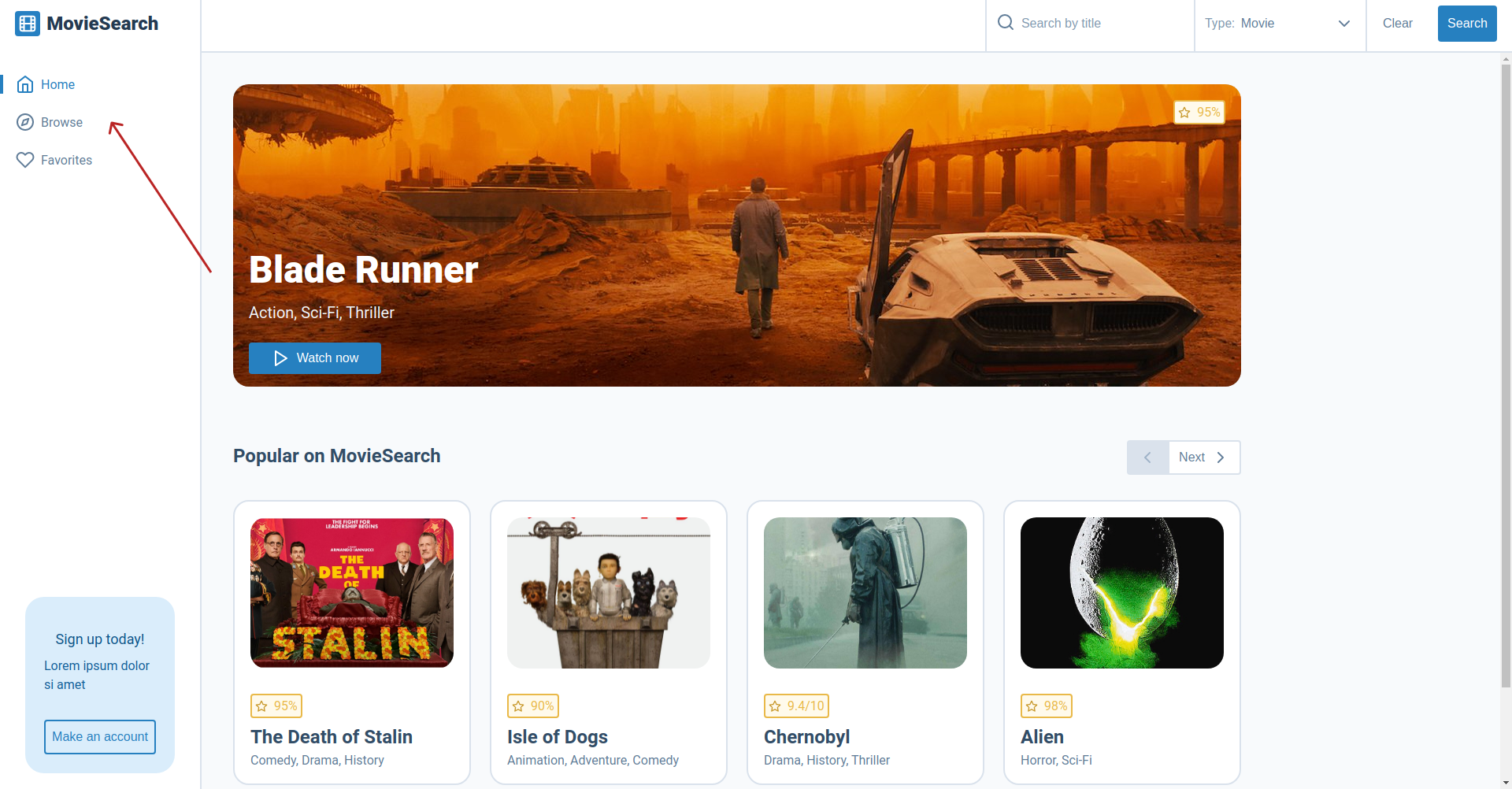
It now contains a Home link (will navigate to "/"), Browse link (will navigate to "/search-results") and a Favorites link (will navigate to "/favorites"). So how do we set these links up, we just use an <a> tag right? No we don't this is because we need React Router to handle navigating between pages. There are two ways of doing this using the <Link /> component or the <NavLink /> component. If we just need a standard link, lets say for when we click on a <Card /> component we can use the <Link /> component. But if we need active links i.e the link colour changes to blue to tell the user they on that page, we can use the <NavLink />. All we need to do is check the isActive value that <NavLink /> passed to our className to update the className depending on wether the link is active or not. Lastly, we just need to set the to prop to the route we want to navigate to.
import React from 'react';
import PropTypes from 'prop-types';
import { FiCompass, FiHeart, FiHome } from 'react-icons/fi';
import { NavLink } from 'react-router-dom';
import styles from './nav.module.scss';
import CallToAction from '../../molecules/call-to-action/call-to-action';

const Nav = ({ className, showMobileNav }) => (
  <nav className={`${styles.nav} ${className} ${showMobileNav ? styles['nav--show'] : ''}`}>
    <ul className={styles.nav__list}>
      <li className={styles.nav__item}>
        <NavLink className={({ isActive }) => (isActive ? styles['nav__link--active'] : styles.nav__link)} to="/">
          <FiHome className={styles.nav__icon} />
          Home
        </NavLink>
      </li>
      <li className={styles.nav__item}>
        <NavLink className={({ isActive }) => (isActive ? styles['nav__link--active'] : styles.nav__link)} to="search-results">
          <FiCompass className={styles.nav__icon} />
          Browse
        </NavLink>
      </li>
      <li className={styles.nav__item}>
        <NavLink className={({ isActive }) => (isActive ? styles['nav__link--active'] : styles.nav__link)} to="favorites">
          <FiHeart className={styles.nav__icon} />
          Favorites
        </NavLink>
      </li>
    </ul>
    <CallToAction />
  </nav>
);

Nav.propTypes = {
  className: PropTypes.string,
  showMobileNav: PropTypes.bool.isRequired,
};

Nav.defaultProps = {
  className: '',
};

export default Nav;
Task
This weeks task is smaller than usual, this is because in unit-5 we will be using what we learnt in this unit and unit-3 to set up our <Movie /> page component. We will be making dynamic routes based on our global state to renter the <Movie /> page component showing a movie based our what the user clicked on in the previous page.
Your task for this unit is:
As you many have noticed, when you click on the "Browse" and "Favorites" links the <NoMatch /> page component is shown. This is because our "/search-results" and "/favorites" routes don't exist.
Make a new
<SearchResults />page component that renders the following heading:<PrimaryHeading>This is search results page</PrimaryHeading>. Then add a new "search-results" route for it in app.js.Make a new
<Favorites />page component that renders the following heading:<PrimaryHeading>This is favorites page</PrimaryHeading>. Then add a new route "favorites" for it in app.js.
If you get stuck or get overwhelmed remember you can always get the answer for this task on the unit-4-answers page.