Unit-1 (state management)
Accessing the Unit-1 tutorial
Clone the unit-1, branch to start this tutorial.
useState
In this unit we will cover the useState hook in React. useState is a Hook that allows you to have state variables in functional components.Let’s first define our state in a functional component and then investigate what is going on.
import React, { useState } from 'react';

const Component = () => {
  const [clicked, setClicked] = useState(false);

  return (
    <button>I have been clicked:<button/>
  )
}
The first part of the useState array is the state is self, in our case clicked. The second part of the array is a call-back function that allows us to change the value of our state setClicked. You can name this anything but it is conventionally named “set” with the name of your state. It’s worth mentioning, using useState to create the variables like this, is an example of array destructuring. Next we pass a value into our useState hook, it’s a boolean in our case, but it could also be a string, number etc.. This is the initial value of our state clicked = false.
Now let’s add an onClick to our button that changes the value of our state to true. We will also render the value of our clicked state.
import React, { useState } from 'react';

const Component = () => {
  const [clicked, setClicked] = useState(false);

  const handleClick = () => setClicked(true);

  return (
    <button onClick={handleClick}>I have been clicked: {useState}<button/>
  )
}
If we wanted our button to toggle all he would have to do is setClicked to whatever our current clicked isn’t.
const handleClick = () => setClicked(!clicked);
If we use ternary operator inside a template literal we can toggle the className of our button to red if not clicked or green if clicked.
import React, { useState } from 'react';

const Component = () => {
  const [clicked, setClicked] = useState(false);

  const handleClick = () => setClicked(true);

  return (
    <button
      className={`button ${clicked ? 'button--green' : 'button--red'}`}
      onClick={handleClick}>
        I have been clicked: {useState}
    <button/>
  )
}
However, as we are using SCSS modules in the project our class name toggle would look like this.
<button
  className={`${styles.button} ${clicked ? styles['button--green'] : styles['button--green']}`}
  onClick={handleClick}>
      I have been clicked: {useState}
<button/>
Lastly, we can also use our clicked state to conditionally render other components or elements. This example will show an icon if the button is clicked
import React, { useState } from 'react';
import { FiCheckCircle } from "react-icons/fi";

const Component = () => {
  const [clicked, setClicked] = useState(false);

  const handleClick = () => setClicked(true);

  return (
    <>
      {clicked && (
        <FiCheckCircle />
      )}
      <button
        onClick={handleClick}>
          I have been clicked: {useState}
      <button/>
    </>
  )
}
Task
In the project the Nav component is hidden on mobile screens and a hamburger menu is shown in the header. We need a way of toggling the Nav to be shown or hidden if a user clicks on the hamburger menu. Using what you have learned use the useState hook to toggle the Navcomponent on mobile screens.
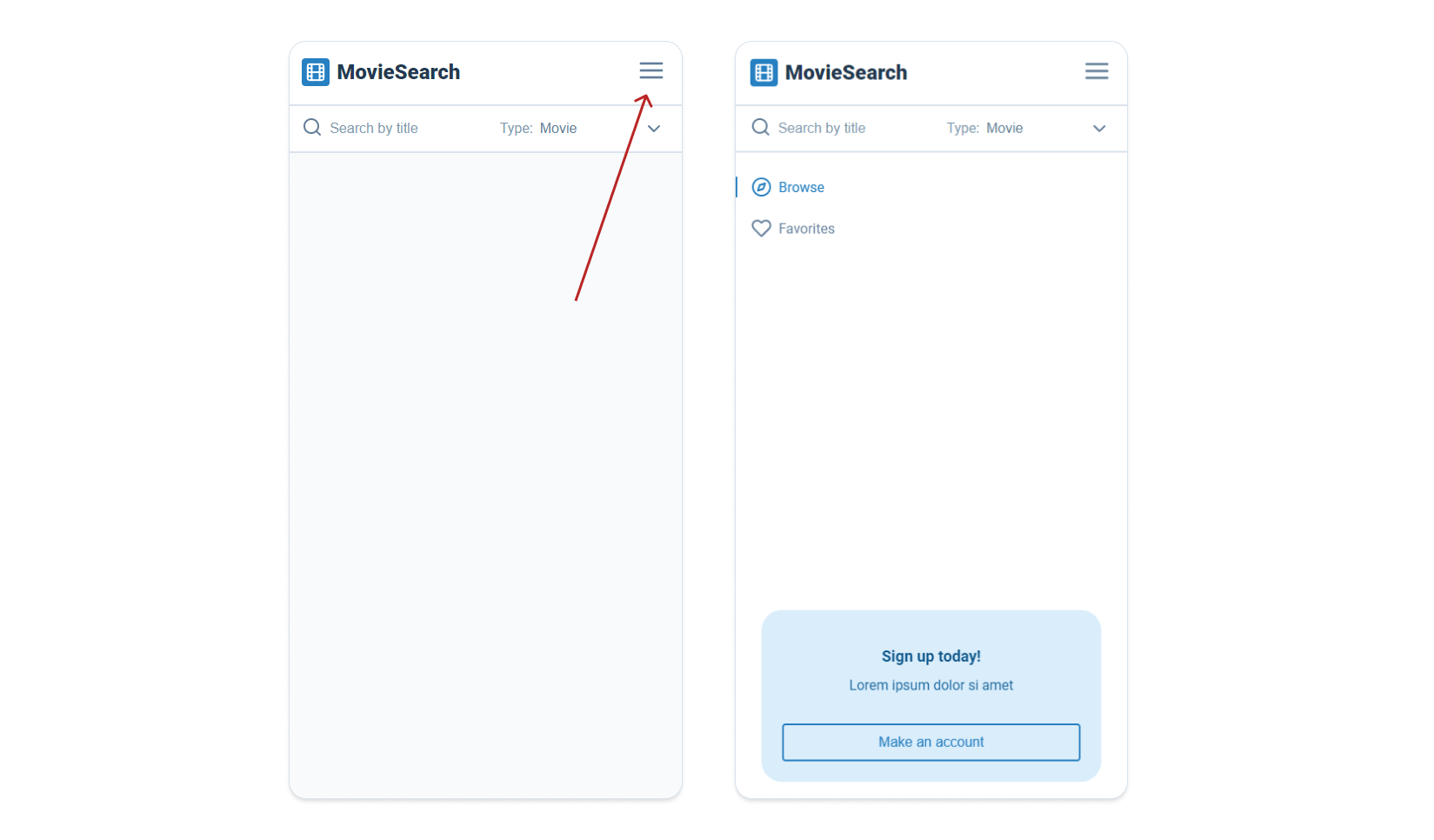
Things to consider:
- The CSS class that shows the
<Nav />is.nav—showand will need to be added to the<Nav />component. - The hamburger icon is found in the
<Header />component and the icon itself is called<FiMenu />, you will need to add anonclickto this icon. - Lastly, you will need to set your state in the
<Layout />component and pass down your state to the<Header />and<Nav />components as props.
An extra challenge
When the navigation is open, update your hamburger menu icon to show as a cross. The project uses react-icons and you can find the icon you need here.